Exporting stems from Ableton Live
First, I should say that I'm using Ableton Live 9.1, which just came out.This is the easy part. To get the highest quality, I made sure the samples in the project were all of the same sample rate. Maybe there is an easier way to do this, but I just click on the samples and look at the clip view.
To export stems from Live:
- File -> Export Audio/Video ... (or command-shift R)
- Rendered Track: Individual Tracks (this is what makes Live export stems)
- Make sure the file type, sample rate, bit depth are set to be the same as all the audio clips.
- Click Export
- Make a new folder in the save dialog, and select it.

- Enter a name. This will be used as a prefix for all the resulting file names. Since you have a folder created in the previous step, chose a short name.
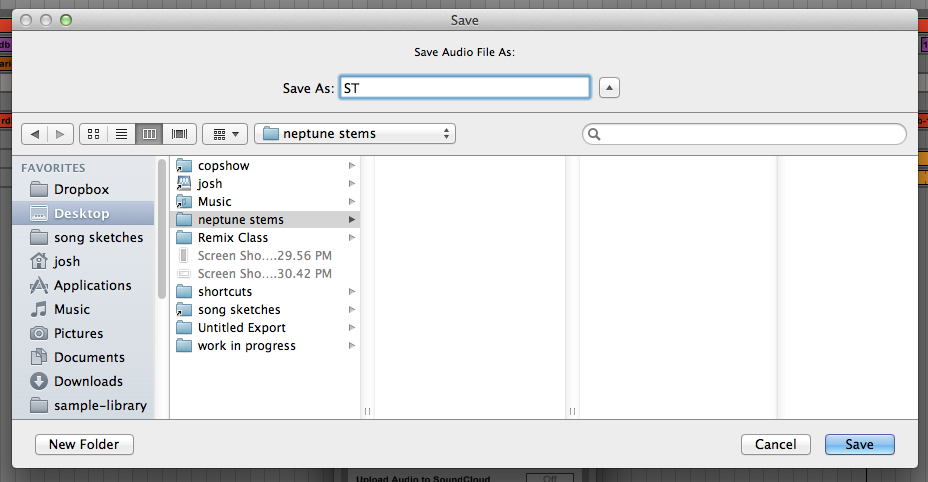
- Click Save. Live will now generate stems for all tracks. Returns, groups, everything.


- Sample rate, bit depth
- Song tempo
Dropping the stems into REAPER
You can pretty much just drop the stems into REAPER. However, there are a few setup steps that will make life easier:- Launch REAPER, create a new project.
- Set the tempo of the new project to the tempo of the Live set: File->Project Settings...
- In the Project Settings tab, set the Project BPM.

- In the Project Settings tab, set the Project BPM.
- Save the project, check Create subdirectory for project so you have a place to put the stem files.

- For convenience, move (or copy) all the stem files into the new project folder.
When REAPER asks, select Separate Tracks.
That's pretty much it. Now you should have a self contained REAPER project folder with all the stems in it.
